


24/7 Support Service
 022 71 71 71
Quick answers
to the most Frequently Asked Questions
Video tutorials
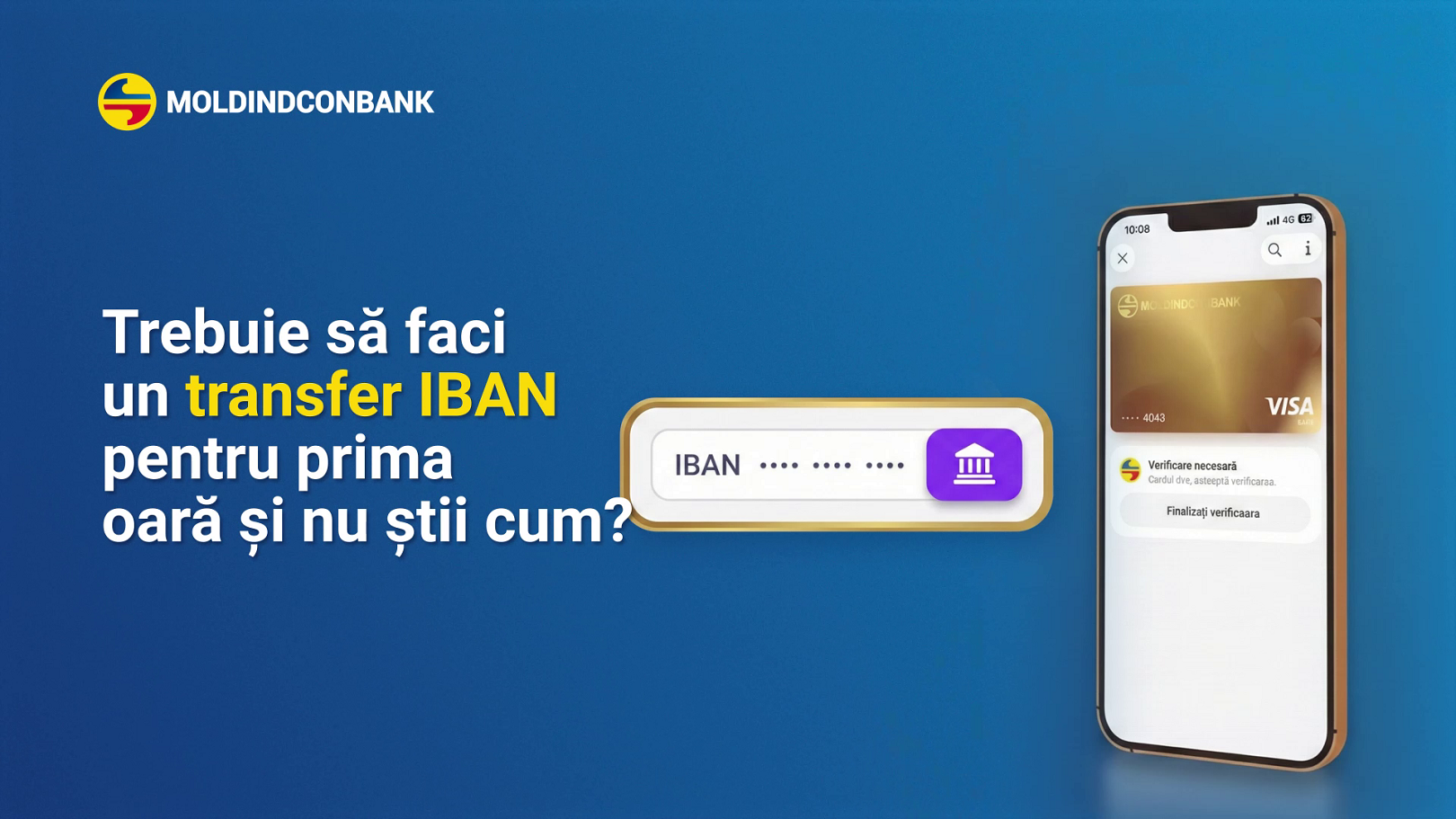

Transfer to an IBAN in MICB Mobile Banking: Your First Transfer
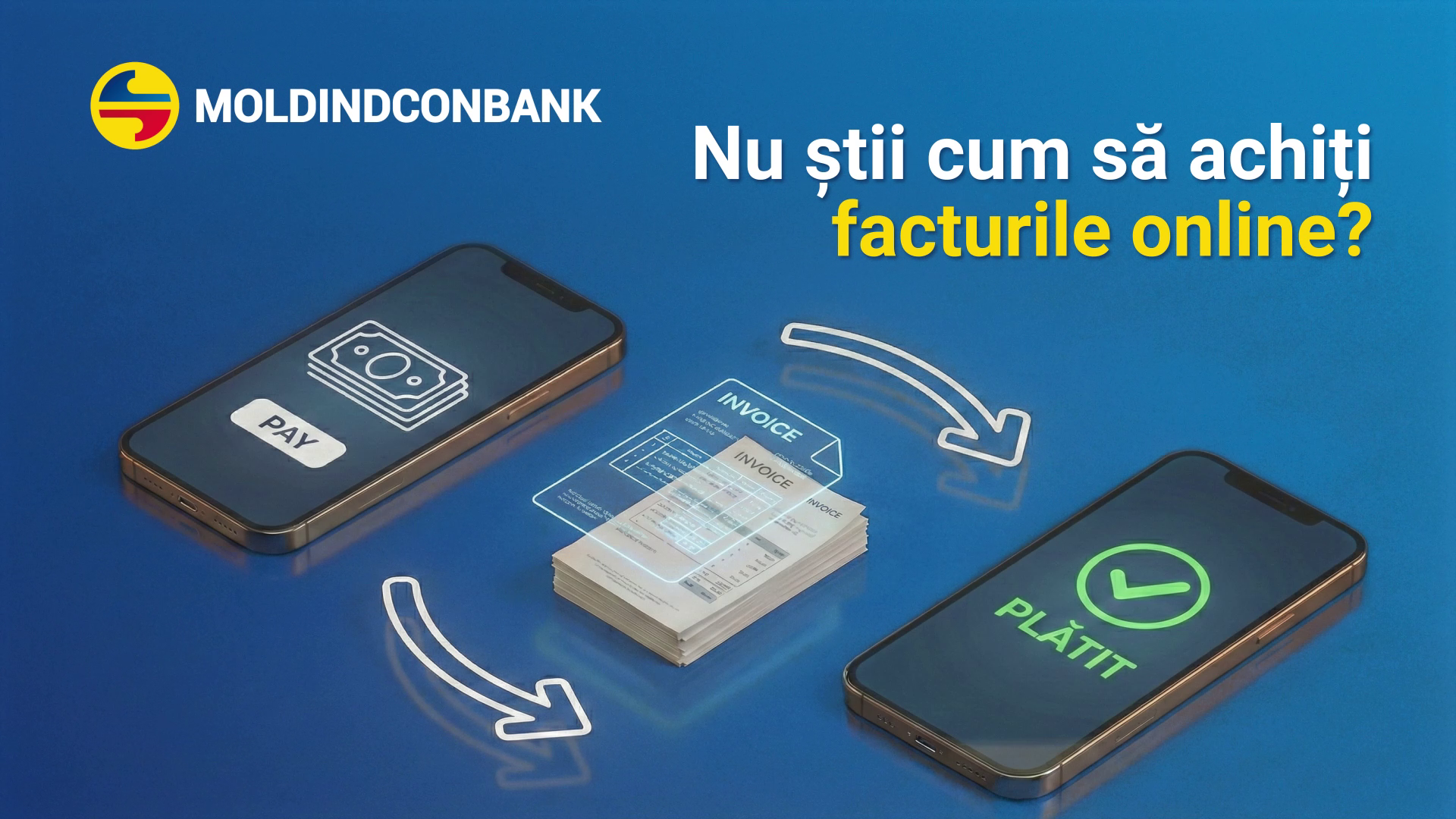
Pay Bills Online, Directly from MICB Mobile Banking
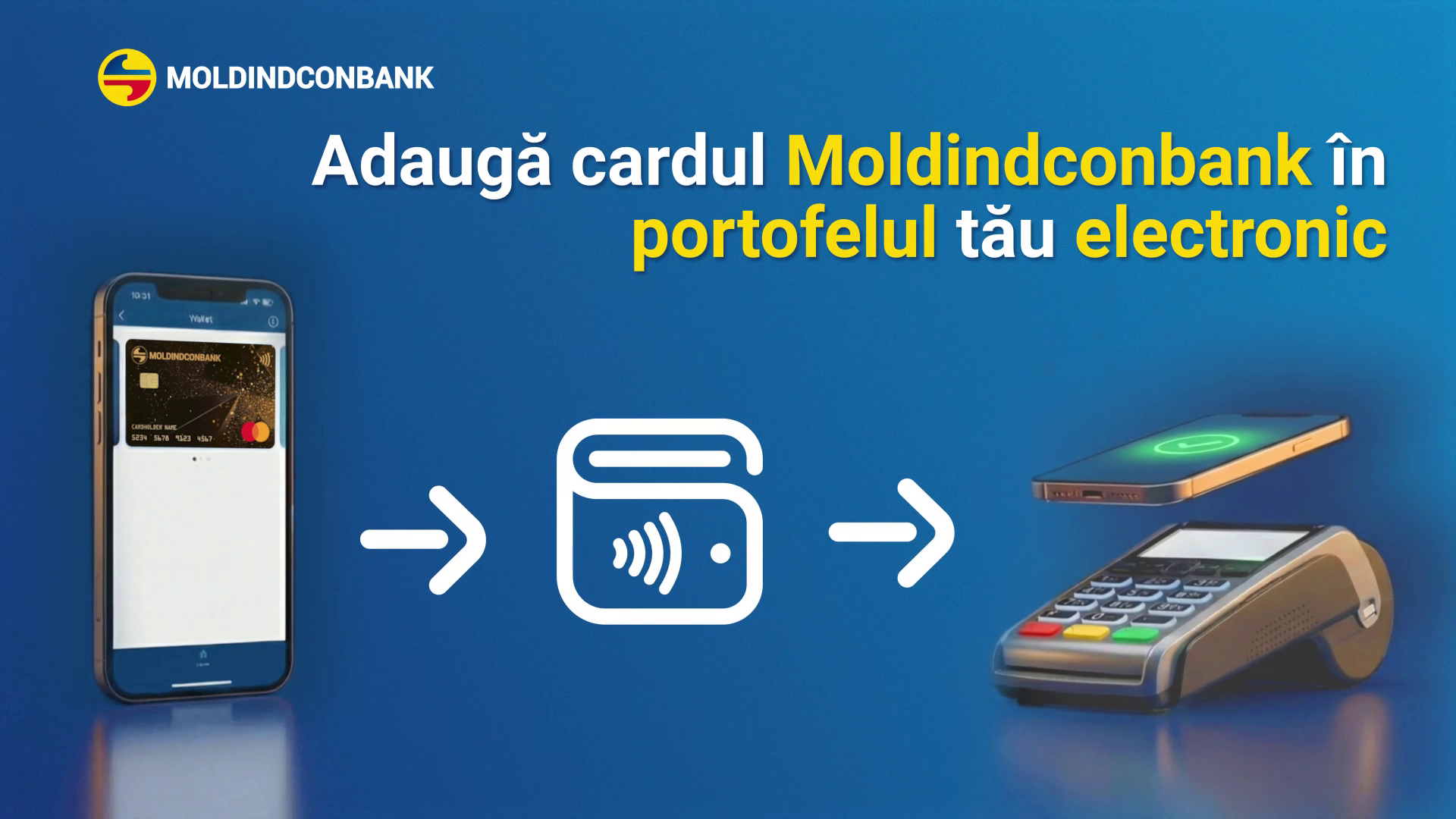
Add Your Moldindconbank Card to Apple Pay/Google Pay
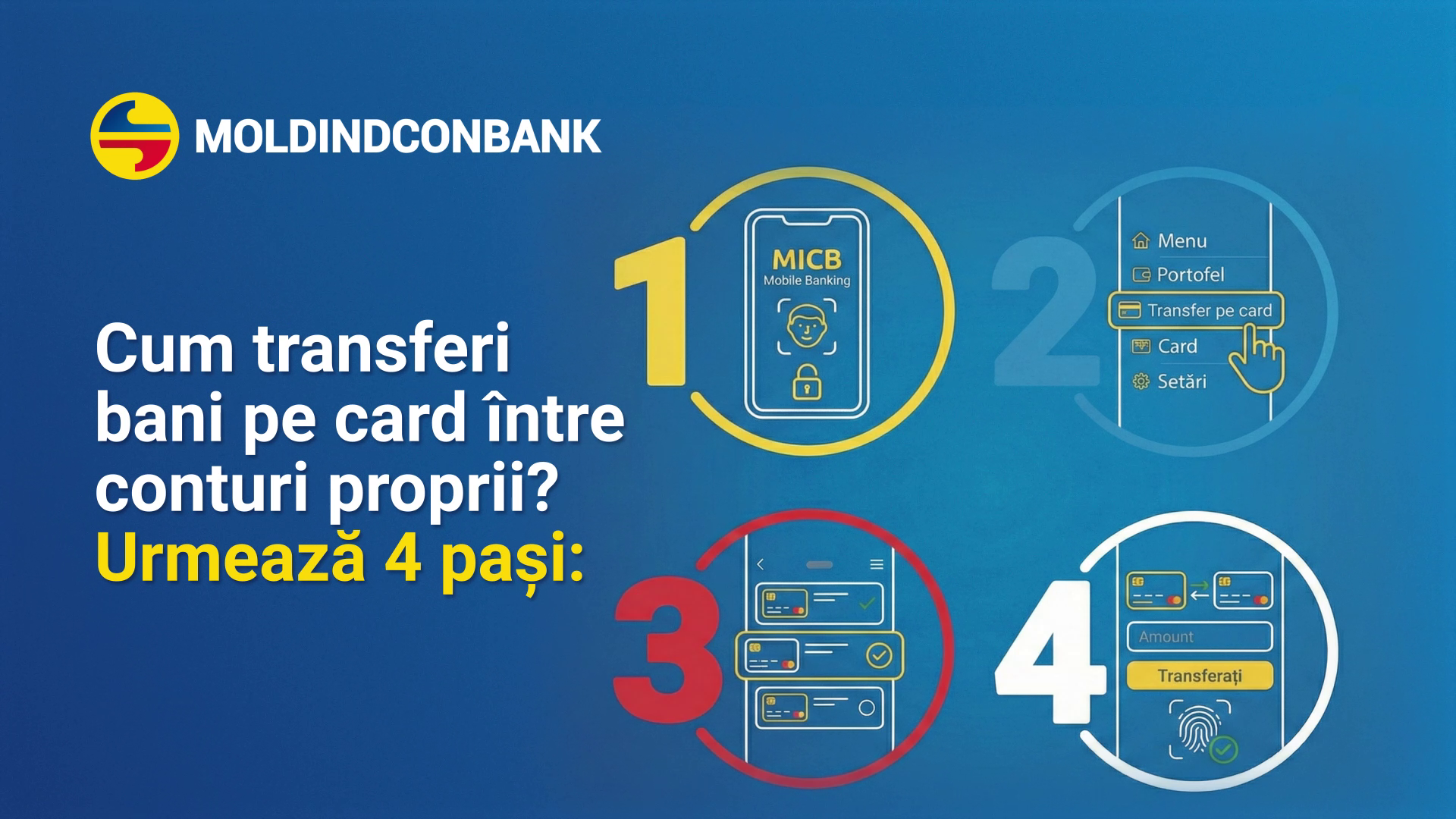
Transfer Between Your Cards in MICB Mobile Banking
MICB Mobile Banking Cashback: Get Cashback on Your Purchases
MIA in MICB Mobile Banking: Instant Transfers 24/7
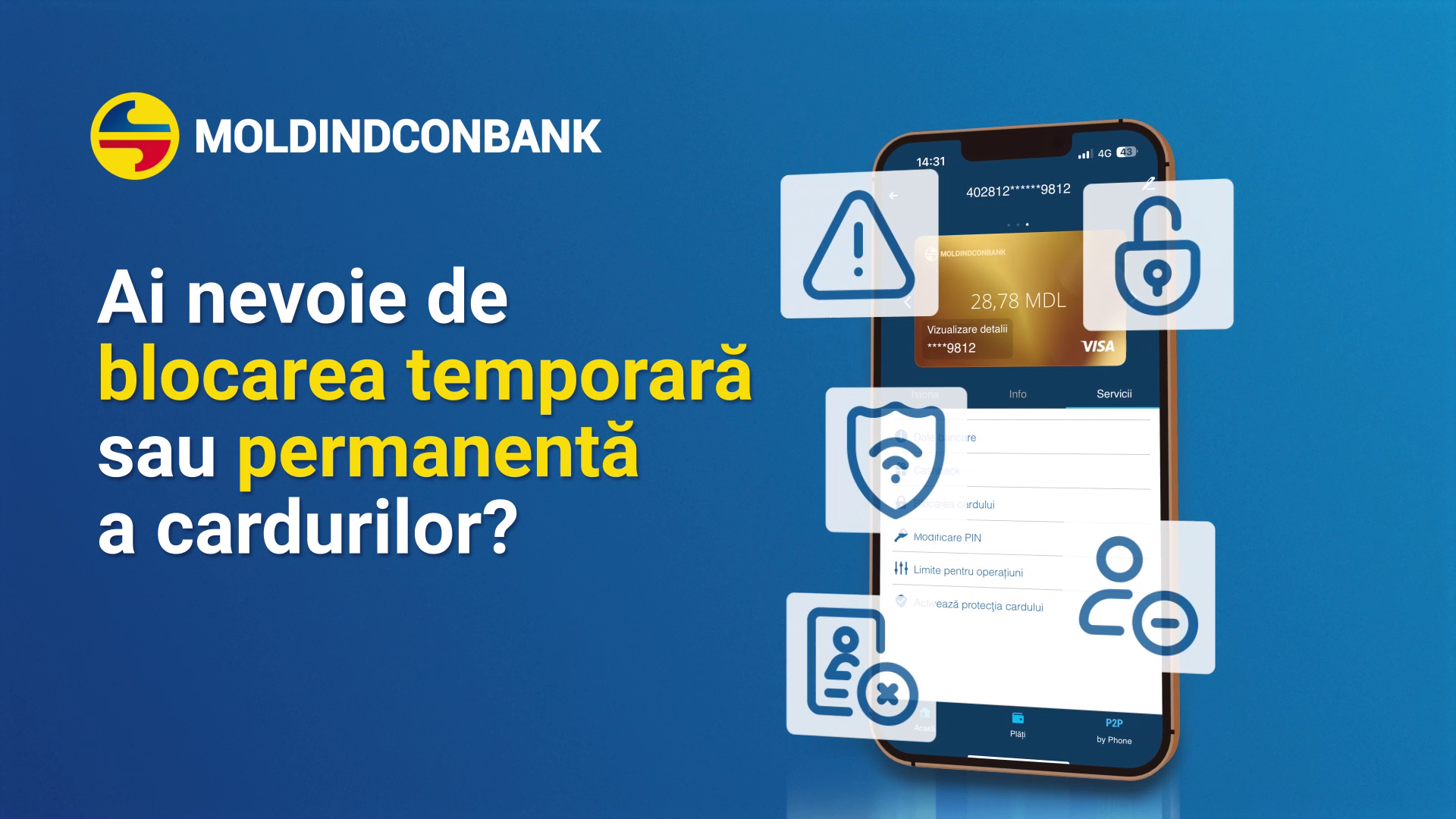
Block Your Card in MICB Mobile Banking: Temporarily or Permanently
Enable SCA in MICB Mobile Banking: More Secure Logins and Payments
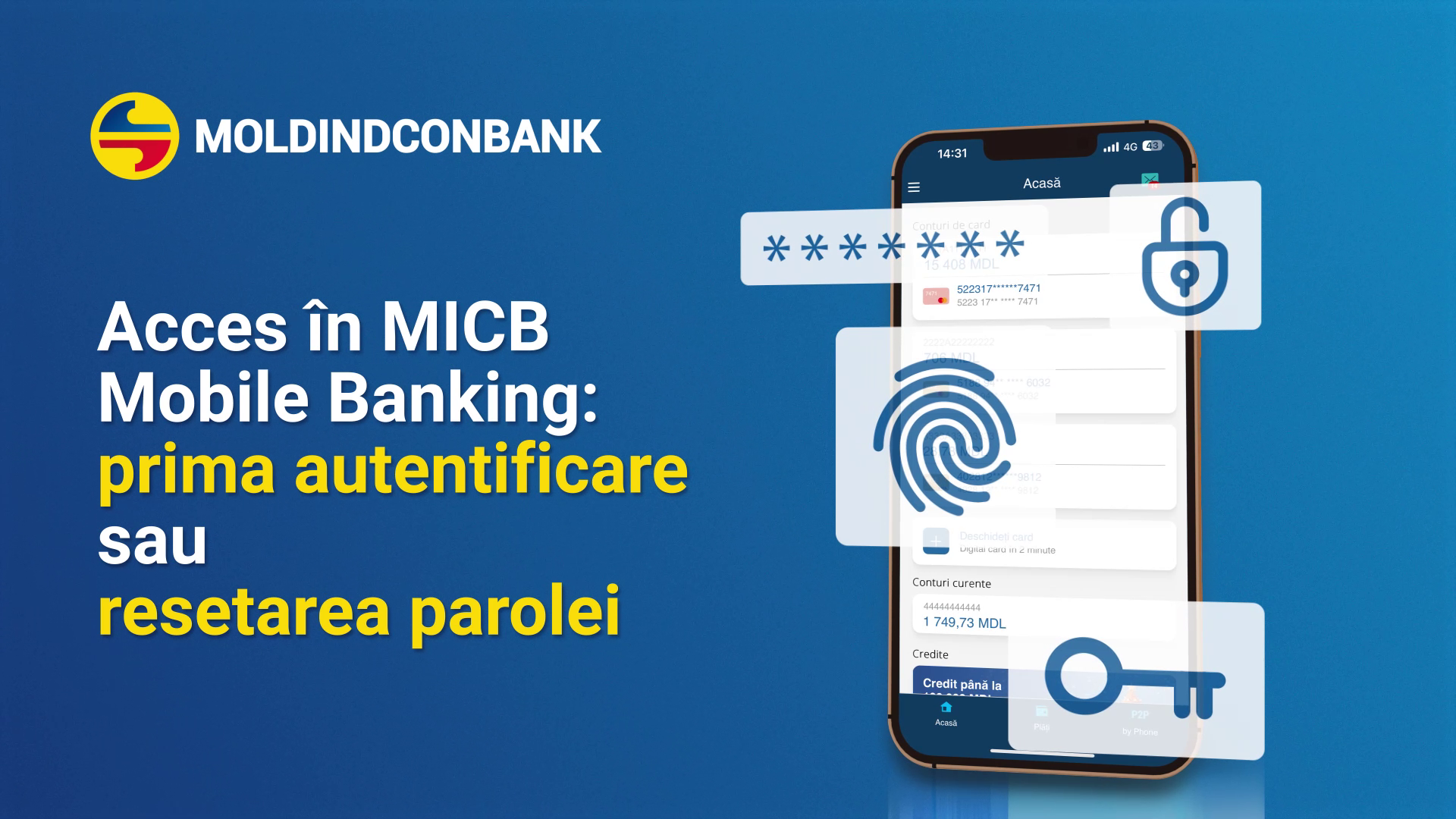
MICB Mobile Banking: First Login and Password Reset
Are you logging in to the MICB Mobile Banking app for the first time, or have you forgotten your password and want to reset it?
Follow these steps:
1. Install the app from the App Store/Google Play. Open it and select “Sign Up/Reset Password”.
2. Enter: your card number, expiration date, date of birth, CVC/CVV2 (located on the back of the card). Tap “Continue”.
*On first login, you will need to enter the code word indicated in the card-opening application completed at the branch. If you have forgotten or lost the code word, you may go to any bank branch to have it verified and, if necessary, changed.
3. Verify your identity with the OTP code you received via text message.
4. Create your login password*, confirm it, tap “Continue,” and finish.
* The password must include uppercase and lowercase letters, numbers, at least one special character and be between 8 and 20 characters long.
You have successfully completed the process; you can now use the app.
Recommendations:
- Do not disclose your password or OTP codes; Moldindconbank does not request them over the phone, via email, or on social media.
- Only download the official app from the App Store or Google Play.
- Avoid saving your password in unsecured notes and using public Wi-Fi networks.
- Keep the app and your operating system up to date.
Strong Customer Authentication (SCA) is automatically activated upon creating the access code — a 5-digit code, set by the customer, used to confirm the operations performed within the app. Optionally, fingerprint authentication or Face ID can be activated for authorization.
SCA can only be used on a single registered device that is marked as a trusted device.
Recommendations:
- If you don’t receive the OTP:
– Check your signal, Airplane Mode/“Do Not Disturb” settings, and make sure there’s enough space for the SMS; request that it be resent; restart your phone; there may be delays when roaming; confirm that the number matches the one registered with the bank.
– Check the “Spam” folder in the SIM card’s “Messages” app (if you can’t find this folder), type “micb.md” in the search bar; if the messages are being sent to spam, the text “Delete from spam” will appear.
- Error registering the device: Check your internet connection; set the date and time to “Automatic”; rooted or jailbroken devices may be blocked.
- “Limit exceeded”/“Device already registered”: SCA is allowed on only one device; deactivate it on the old device or contact 24/7 Support at +373 22 71 71 71.
- Forgot your code: Use “Reset” on the login screen and restart the process (OTP + set new code).

- Open the MICB Mobile Banking app, select the desired card from the home screen, and then choose “Block Card” from the Services section.
- Select “Reason for Blocking” and the type:
- Permanent block: The card is permanently blocked and cannot be unblocked.
- Temporary block: Payments are stopped immediately; you can unblock the card at any time from the app.
- Unblocking:
- For a temporary block: select “Unblock Card” > add a comment > confirm by entering your SCA code.
- If the block is permanent: request a new card from “Get Your Card” (home screen)—a virtual card will be issued. The digital card is a plastic-free payment card issued separately from your existing account and available exclusively through the MICB Mobile Banking app.
Temporary blocking provides a reversible “pause” when you suspect a risk, while permanent blocking applies when the card is lost or stolen.
If you wish to continue using your existing account and have your permanently blocked card reissued through the app, you must visit any branch of the Bank—including on Saturdays and Sundays at:
- in person, by presenting your ID card;
- through an authorized representative, based on a notarized power of attorney.
For more details on fees, click the link.

If you have an active card and wish to receive transfers via the MIA service, this service can only be used with an active card denominated in Moldovan lei (MDL). To link your card, please follow the steps below:
- Log in to MICB Mobile Banking, go to “Settings” in the main menu, and select “MIA Settings”.
- Select “Receive Money with MIA,” accept the Terms and Conditions by tapping the icon, then tap “Activate”.
- Select the account you want to enroll in MIA, accept the Terms and Conditions, then complete the process by tapping “Activate”.
MIA has been successfully activated. To initiate a transfer, go to “Payments and Transfers” in the main menu and follow the on-screen instructions.
Recommendations:
• Carefully verify the recipient and the amount; instant transfers generally cannot be canceled.
• Do not disclose codes or OTPs, and do not authorize payments at the request of strangers.
• Use the official app and keep your system and phone up to date.
• If you notice any unusual transactions: temporarily block your account or card, change your password or PIN, and contact 24/7 Support immediately.

- Open the MICB Mobile Banking app and log in with your access code or Face ID.
- Select your card, go to the “Services” section, then select and activate the Cashback program.
- View the categories of eligible merchants, accept the program’s Terms and Conditions, and you’ve activated the program.
Pay at eligible merchants (including via Apple/Google Pay). View the amount accumulated from payments, confirm the withdrawal, and the money will be transferred to the card registered in the loyalty program.
Recommendations:
• Update the app to the latest version to see all available merchants and offers.
• Turn on notifications to receive alerts about your accumulated balances and withdrawals.
• The list of merchants and eligibility requirements may vary; check the details in the app periodically.
• If you have multiple cards, make sure you’ve activated the program on all the cards you use for payments.

- Open MICB Mobile Banking and log in with your access code or Face ID.
- Under “Payments and Transfers,” select “Card Transfer”.
- Select the source card from your list of cards.
- Select the destination card, enter the desired amount, tap “Transfer,” and confirm the transfer.
Optional: You can save the transfer as a template or schedule it for future transactions.
Recommendations:
• Carefully check the source card, destination card, and amount before confirming.
• If you’re transferring between cards in different currencies, the conversion will be based on the bank’s exchange rate at the time of processing.
• Limits and any fees apply according to the fee schedule; you can view them on the website.

The process for adding the card to your digital wallet varies depending on your device’s operating system. To add a card to Apple Pay (iOS), go to your phone’s settings, then open the Wallet and Apple Pay section; for Google Pay (Android), download the app from the Play Store.
Please note that for Android devices, there are apps that offer digital wallet services for a fee or on a subscription basis.
We recommend that you carefully read the app’s terms and conditions of use before adding your card.
- Open Apple Wallet or Google Wallet and tap “Add Card” (+).
- Verify your card details and accept the terms; on Android, make sure NFC is enabled and Google Pay is set as the default payment method.
- Confirm the card: choose verification via SMS/OTP or by calling the 24/7 Support Service.
Done: the card appears in Wallet. Set it as the default and test a contactless or online payment. If it doesn’t work, update the apps and restart your phone.
Recommendations:
• Make sure you have an internet connection, the latest versions of the Wallet and Moldindconbank apps, and that your screen is secured (Face ID/Touch ID/password).
• On Android, make sure NFC is enabled and Contactless Payments is set as the default; on iPhone, go to Settings > Wallet & Apple Pay (default card).
• Your device must be compatible and not rooted or jailbroken; your region and OS version must support Apple Pay or Google Pay.
• If it doesn’t work, restart your phone and repeat the steps. For assistance, contact 24/7 Support.
The card can be added to the electronic wallet directly from the MICB Mobile Banking app by following the steps below:
-
Access the card you want to add to Apple Wallet or Google Wallet.
-
In the “Services” section, select the “Add to Apple Wallet/Google Wallet” option.
-
Confirm the operation using the SCA code.
-
Select the device on which you want to add the card.
-
Press “Continue”.
-
Read the terms and conditions, then press “Agree” to continue.
-
After the process is successfully completed, you will receive a push notification or an SMS message confirming the addition of the card to the electronic wallet.

Not sure how to pay your bills online? Here’s how you can do it easily with MICB Mobile Banking:
- Go to “Payments” in the main menu.
- Select the provider, fill in the required fields, choose the payment account, and tap “Continue”.
- Review the payment details, confirm the transaction, complete the authorization, and your bill is paid!
Optional: You can save the payment as a template or schedule it for future transactions.
Recommendations:
• Have the necessary information ready (e.g., customer ID/contract number) and verify the amount and payment account before confirming.
• Some payments may have fees or processing deadlines; check the details displayed in the app.
• You can track the payment status and history in “Payments” or on your account statement.

Is this your first time making an IBAN transfer and you’re not sure how? Before you begin, make sure you have the recipient’s information:
• First and last name (individual) or full name (business)
• Tax ID
• IBAN
- From the MICB Mobile Banking main menu, go to “Payments and Transfers” (or tap “Payments” in the bottom menu), then select “Transfer to IBAN”.
- Enter the IBAN in the designated field. The system will verify it and display the identified IBAN. Tap “Continue”.
- If the recipient is an individual: enter the tax ID, first name, and last name. Select the recipient’s status and tap “Continue”.
- If the recipient is a legal entity: enter the tax ID and the company’s full name. Select the tax status and click “Continue”.
- Select the source account, enter the amount, choose the purpose of the transfer from the predefined list, and fill in the transfer details. Click “Transfer” and authorize the transaction with SCA.
Dear Customer, transfers to IBANs are not processed in real time; depending on the urgency, please make the transfer on business days by 4:00 PM.
Recommendations:
• Carefully check the IBAN (no spaces), tax ID, and amount before authorizing the transfer.
• For accounts in different currencies, the bank’s exchange rate applies; limits and fees may apply according to the fee schedule.
• If an error occurs, check your balance, transaction limits, internet connection, and whether the app is up to date. For assistance, contact our 24/7 Support Service.

To update your information in the MICB Mobile Banking app, we recommend that you follow the steps below:
- Open the app and go to the “Profile” section in the main menu;
- Select the “Update Information” option;
- Accept the terms and conditions by checking the appropriate boxes;
- Review and confirm the displayed information;
- Answer the questions in the questionnaire;
- Validate the information by entering your SCA code.
The Bank will process the updated data and send a notification via the mobile app to confirm that the update process is complete.
If any discrepancies are identified during the data verification process, the update process will be halted, and you will be asked to continue updating your data at any Bank branch.
* Please note that the phone number registered with the Bank can be updated in the event of loss, blocking, or change by the customer only at the Bank’s branches, using the following methods:
- in person, upon presentation of an ID;
- through an authorized representative, based on a notarized power of attorney.